
Sign-up and access
Register your company, confirm your email, set your password and sign in to DeCA. You will also see here how to recover access, change the language and sign out.
On this page
Register your company
Signing up creates your company in DeCA and your first user (the administrator). It is free and does not ask for a password yet: you set that later, when you confirm your email.
Open the sign-up page
Go to app.docarga.com and click Sign up (path
/registro).Fill in the company details
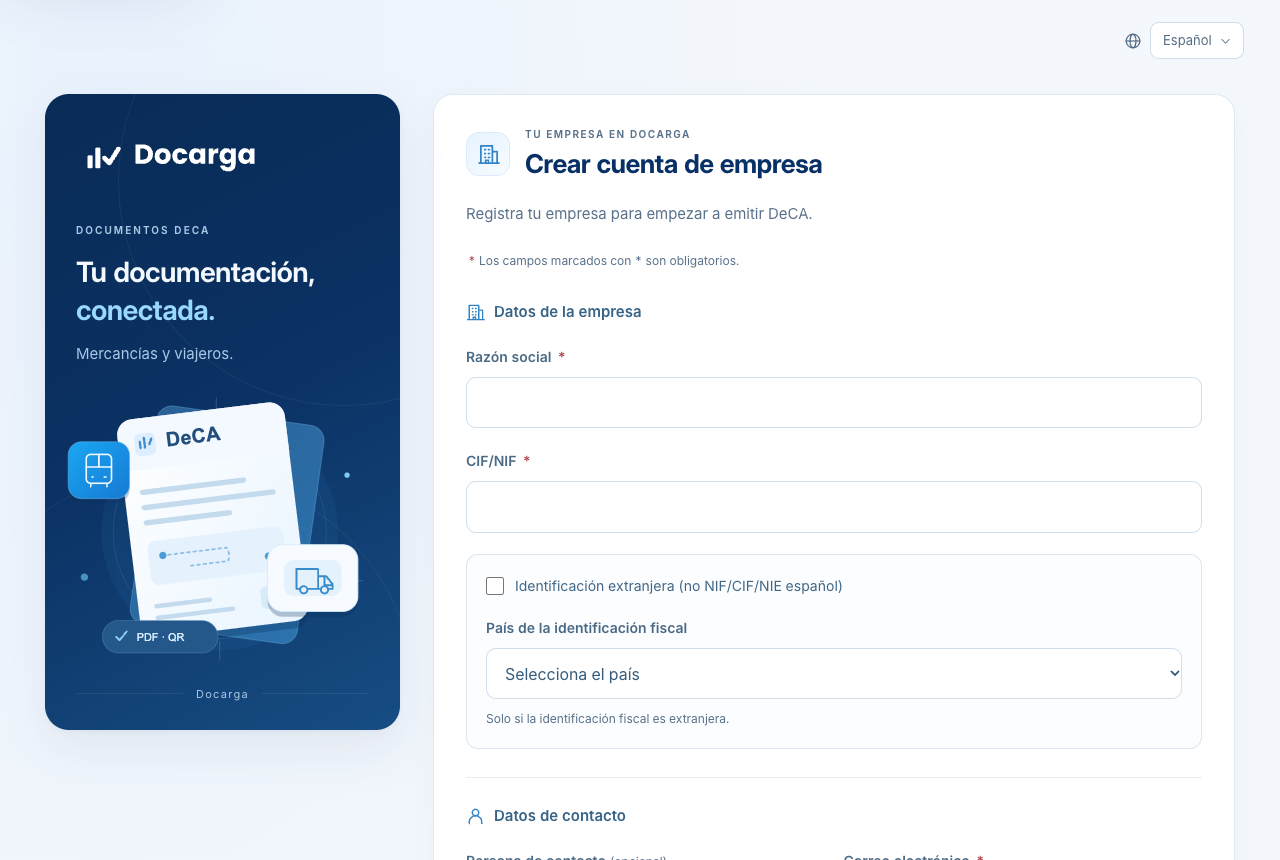
Legal company name, CIF/NIF (tax ID), contact person, email and phone number. The email will be your identifier to sign in. If your company is not Spanish, tick Foreign identification and choose the country: the format of a Spanish NIF is then not required. If you leave it unticked, the CIF/NIF must be a valid Spanish one.
Choose how you will use DeCA
Select one of the four operating profile cards: goods carrier, loading company, transport operator or passenger carrier. It is required and tailors the application to your activity.
(Optional) Upload your logo
A PNG or SVG of up to 1 MB. It will appear in the header of your documents' PDF. You can also do this later from Account.
Accept the terms and submit
Tick to accept the terms and the privacy policy and click Create account.
What you should see
A notice that a verification email has been sent to the address you provided. Your company is left as "pending verification".
Note
If the email was already registered, you will see a generic message and no new account is created. This is a security measure so as not to reveal which emails have an account.
Verify your email
Verification confirms that the email is yours before granting you access.
Open the verification email
Look for the message from DeCA in your inbox (check your spam folder too).
Click the link
The link is single-use and expires after 24 hours.
What you should see
A confirmation that the email is verified and a new message to set your password.
Tip
When you open the link you will see one of these outcomes: Email verified (all good; you also receive the message to create your password), Account already verified if the link had already been used —with a Sign in button—, or Link expired / Invalid link if it went past 24 hours or is not correct. In these last two cases, the page sends you to the sign-in page to request a new one; it is not resent from the verification screen itself.
Set your password
Open the link to create your password
It arrives in the email that follows verification and expires in 1 hour.
Enter a strong password
It must meet the strength requirements shown. Type it again in Confirm new password and save: if they do not match, you will see “The passwords do not match” and nothing changes. The eye icon on each field shows the password and hides it again without losing what you typed.
What you should see
Your password is set and you can now sign in. The natural next step is to subscribe to a plan or use your free trial allowance.
Sign in
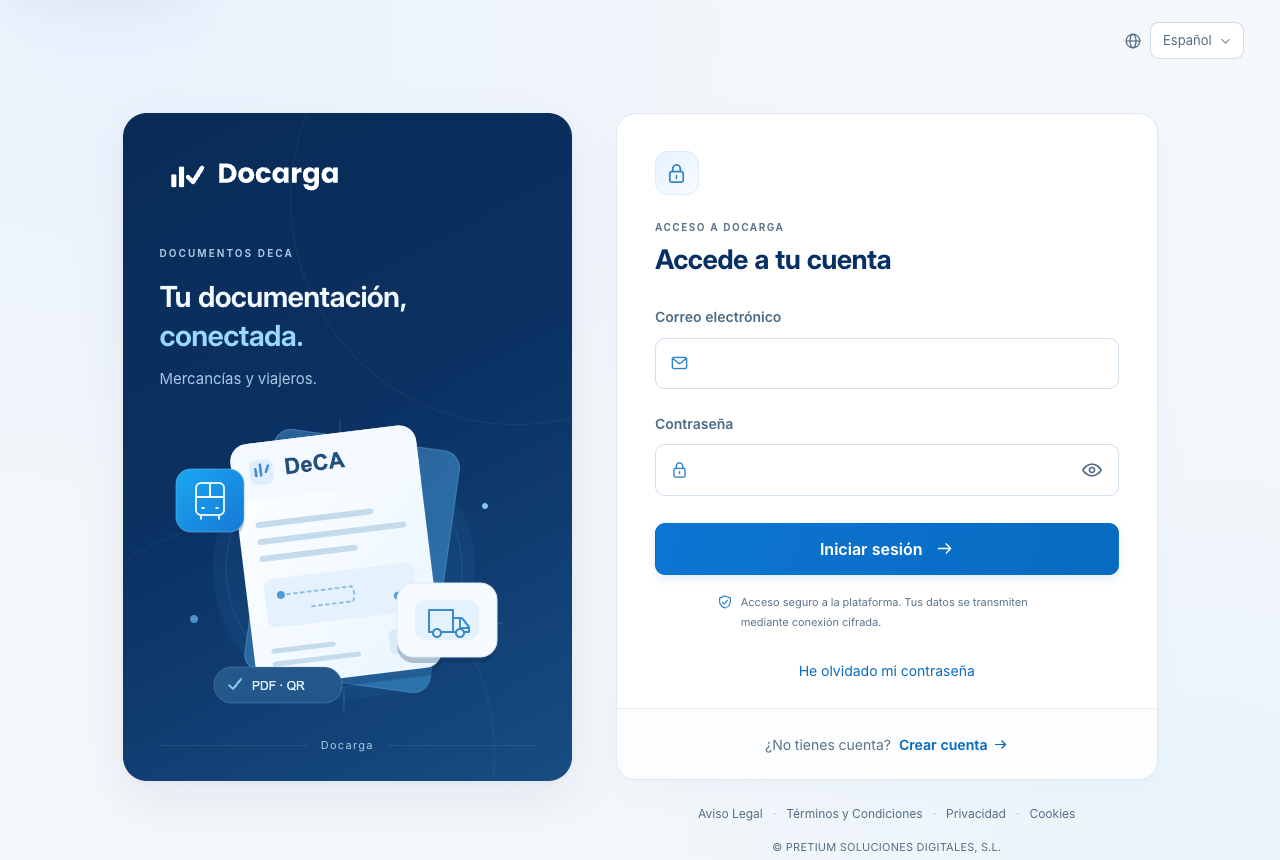
Open the sign-in page
Path
/acceso. Enter your email and password and click Sign in. The eye icon shows or hides the password while you type it.If you have two-step verification
Enter the six-digit code from your authenticator app when prompted.
Note
If the email or password is incorrect, the message is neutral and does not indicate which of the two is wrong. Learn how to enable two-step verification in Users and security.
Recover your password
Request the reset
At
/recuperar, enter your email. You will always see a neutral response (whether or not the account exists).Open the link in the email
If the account exists, you will receive a link that expires in 1 hour. Open it and enter the new password twice, in New password and in Confirm new password. If they do not match, your previous password remains the valid one.
Note
The reset link is single-use. If you open one that has expired or that you have already used, you will see the Link unavailable page with the Request a new link button, which takes you back to /recuperar to request another email.
Change the language
DeCA is available in Spanish, Catalan, Basque, Galician and English.
Use the language selector
It is available both before signing in and inside the application. Choose the language and the interface is translated instantly.
Note
The language is per user. Each person in your company can have their own; the initial value is inherited from the company's default language (see Account and company).
Sign out
To sign out securely, open the Account menu and click Sign out. You will return to the sign-in page.
To protect registration, if too many attempts are sent in an hour, wait until the notice says you can try again.